
getting started ·
How to Set Up Your First ScreenTickr Board in One Evening
It's ten past eight. One child is dressed but can't find their shoes. The other is on the sofa with a book and has been asked twice. You're going to be late again, and the day hasn't started.
Setting up a board takes one evening. Here's how we'd do it.
Start With the Conversation
Before you open the app, sit down with your children and talk through why you're introducing this. The reasons will be familiar to them too: the morning battles, the nagging, the endless requests for more device time. Let them know that screen time isn't going away. It's something they earn.
Talk through what you expect each day, and be specific about it. "Getting ready in the morning" in our house means dressed, breakfast eaten, and bag packed, without being asked. That shared understanding matters, because it becomes the foundation of their board. A child who thinks "getting ready" means putting socks on will feel hard done by when the minutes don't land.
Building Your List
Write down the things that cause the most friction day to day. Those are your candidates. Think daily or near-daily responsibilities, the things you find yourself repeating.
Some common starting points:
- Getting ready for school
- Tidying up after meals
- Organising their personal space
- Doing homework
- Bedtime routine
- Staying in bed after lights out
Keep the framing positive: "organising their personal space" rather than "stop leaving your room in a state". If you have more than one child, their lists may differ depending on age and expectation, and ScreenTickr handles each child separately.
Assign each task a number of minutes. We use five minutes per task as a baseline. A task that runs every day, at five minutes, is worth 35 minutes across a week. Six of those add up to three and a half hours of screen time, which is plenty of incentive to follow through. Tasks you limit to certain days earn less, so a homework task set to weekdays only will bring that total down. Worth knowing before your child does the sums themselves and asks why.
Setting Up in ScreenTickr
Once you know your list, open ScreenTickr and create a new Template. Give it a name and description, something like "Mia's Weekly Board". The app offers a list of commonly used tasks to get you started, or you can add your own (instrument practice, exercises, a habit you're working on). Each task has a name and a minute value, and you can limit it to specific days if needed.
You'll only need to create the template once. It's designed to be reused, so update it when responsibilities change as your child gets older.
When you're ready to begin, Activate the template. Select the child it's for and choose a start date. We start on Saturday so the minutes earned are ready for weekend screen time, though Monday works well too. The activated template becomes your Board, the live tracker for that week.
Running the Week
ScreenTickr is a parent tool, and that's deliberate. You mark tasks off in the app. Your child doesn't need an account, and the app shouldn't become another screen for them to look at.
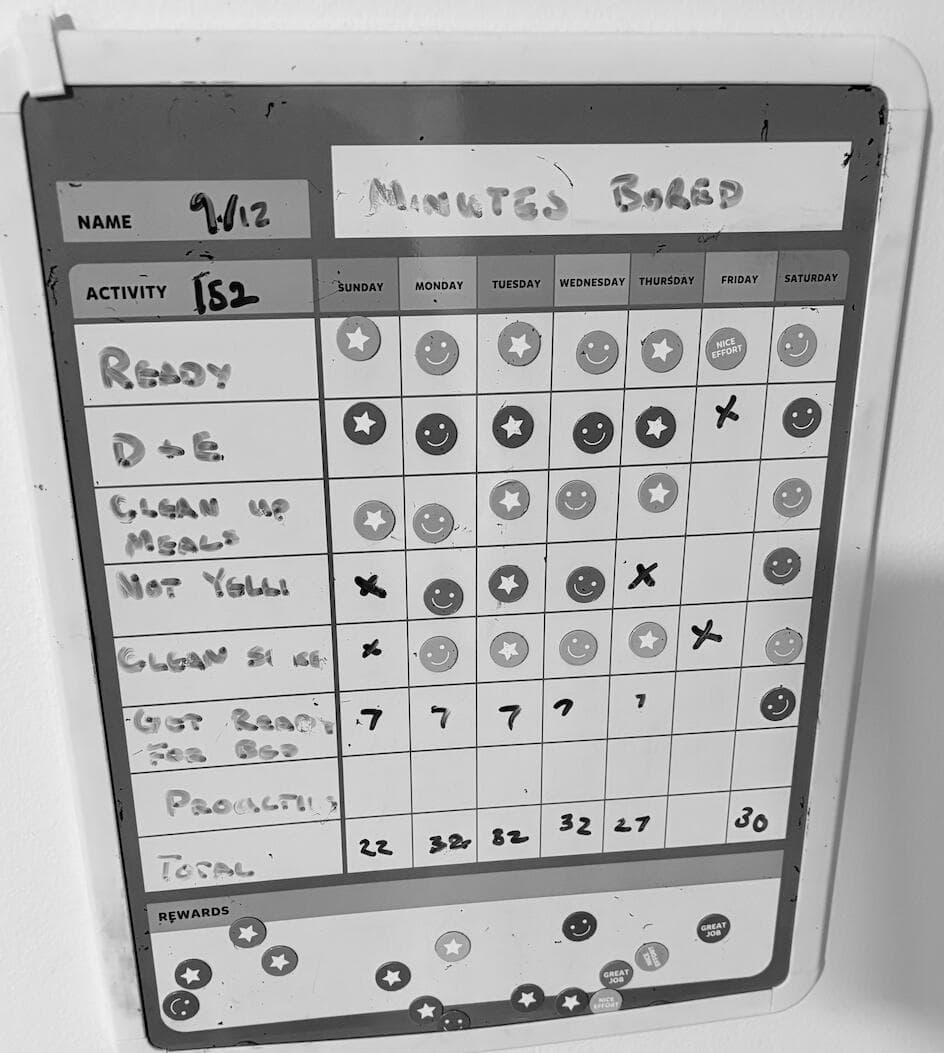
That's why a physical board works well alongside it. ScreenTickr can print a weekly chart with empty boxes your child can tick off as they go, or you can pick up an erasable rewards chart from a stationery store. We started with a paper chart before we built the app, and the routine still holds up. You mark things off in the app while your child crosses them off on the wall. It's a visual reminder of what's expected, sitting where they'll see it.
At the end of the week, sit down together and go through how it went. Add up the minutes. ScreenTickr calculates the total for you, but letting your children count it up themselves turns it into a maths lesson they're motivated to get right. Once the total is confirmed, they're free to spend it within whatever guidelines your family has agreed on. Then activate a new board with a new start date, and the cycle begins again.
Looking Back
ScreenTickr keeps a history of every completed board. Over time you'll see patterns: tasks that are always ticked, tasks that are consistently missed. That's useful. It turns "you never tidy up" into "this one has been missed four weeks running, what's getting in the way?", which is a conversation rather than an accusation.
The first week rarely looks tidy, and that's fine. You're not aiming for a perfect score. You're aiming for fewer battles, more independence, and a slow understanding that the things we want come after the things we need to do.